
At the core is Pro Video AI, Apple’s new on-device inference engine for video tasks. It handles object removal, voice isolation, and motion tracking without sending footage to the cloud. For editors juggling tight deadlines, this means faster cuts, fewer round trips, and cleaner deliverables straight from the timeline.
Quick takeaways
-
- Apple Creator Studio 2026 brings native AI editing to Final Cut Pro, cutting manual steps for object removal, audio cleanup, and color matching.
-
- Pro Video AI runs fully on-device using Apple silicon, preserving privacy and enabling real-time 4K preview renders.
-
- Supported on M2/M3 Macs with 16GB+ RAM; older Intel Macs get limited features via GPU fallback.
-
- New subscription model: bundled with Final Cut Pro or as a standalone add-on for existing users.
-
- Workflow upgrades include Smart Timeline, Scene Match, and AI Rough Cut—useful for fast-turnaround edits.
What’s New and Why It Matters
Apple Creator Studio 2026 isn’t just a feature pack—it’s a workflow overhaul. Instead of exporting clips to third-party AI tools, editors can now remove unwanted objects, track motion, match color, and clean audio directly inside Final Cut Pro. The engine behind this is Pro Video AI, which uses on-device neural processing to keep data local and speed up renders. For pros, this means fewer context switches, less waiting, and more time spent on creative decisions.
Why this matters now: content demands are exploding across social, streaming, and corporate. Teams need faster turnaround without sacrificing quality. Apple Creator Studio tackles that by integrating AI steps that traditionally required external apps—like rotoscoping, noise reduction, and scene analysis—into a single, unified timeline. The result is a more predictable pipeline with fewer export/import cycles and tighter control over final output.
For solo creators and small studios, the value is time. For larger teams, it’s consistency. The same AI models run on every machine, so color matches and audio profiles stay aligned across projects. And because it’s on-device, you’re not waiting on cloud queues or paying per-minute inference fees.
Apple Creator Studio also introduces “Smart Timeline,” which auto-arranges clips based on scene detection and dialogue markers. It’s not perfect—manual review is still essential—but it gets you to a rough cut in minutes, not hours. That’s a game-changer for daily deliverables like social cuts, B-roll packages, and highlight reels.
Finally, Pro Video AI adds “Scene Match,” which balances color and exposure between shots from different cameras or lighting conditions. Instead of manual secondary grading, you get a baseline match that you can refine. It’s particularly useful for multi-cam interviews, event coverage, and run-and-gun shoots.
In short, Apple Creator Studio 2026 turns your Mac into an AI-powered edit suite, with Pro Video AI doing the heavy lifting while you stay in control.
Key Details (Specs, Features, Changes)
Apple Creator Studio 2026 is built as an extension of Final Cut Pro, leveraging Pro Video AI for on-device inference. Supported hardware includes M2 and M3 series Macs with at least 16GB of unified memory. M3 Ultra configurations handle 4K AI tasks in real-time, while M2 Pro/Max machines offer near-realtime previews with slight render delays on complex effects. Intel-based Macs are supported via GPU fallback, but performance is inconsistent and some features (like object removal) are limited.
Feature set includes: Object Removal (smart fill using surrounding frames), Motion Tracking (auto-anchored overlays and titles), Scene Match (cross-camera color/exposure balancing), Dialogue Enhance (noise reduction and voice clarity), and AI Rough Cut (auto-arrange based on scene detection). All features run through Pro Video AI, with model sizes tuned per task—small models for speed, larger models for quality. Users can choose between “Fast” and “High Quality” modes per effect.
What changed vs before: Previously, many of these tasks required exporting to external apps or using third-party plugins. Object removal needed rotoscoping or dedicated cleanup software; motion tracking often meant round-tripping to compositing apps; audio cleanup lived in separate audio editors. Apple Creator Studio 2026 consolidates these into the timeline, with non-destructive effects and live previews. The new Smart Timeline replaces manual clip sorting with scene-aware automation, and Scene Match reduces the need for manual secondary grading.
Another major shift is the pricing and packaging. Apple Creator Studio is now available as a standalone add-on for existing Final Cut Pro users or bundled with a new subscription tier. This is a departure from the previous one-time purchase model for Final Cut Pro. For teams, license management is streamlined via Apple Business Manager, and shared effect presets can be synced across seats.
Under the hood, Pro Video AI uses Apple’s neural engine for inference, keeping data on-device. There’s optional cloud assist for background indexing (not rendering), but all creative processing happens locally. This improves privacy and reduces latency, especially for editors working with sensitive or proprietary footage.
For workflows, the biggest change is the elimination of context switching. Instead of jumping between apps for audio, color, and cleanup, you stay in Final Cut Pro. That saves time, reduces export/import errors, and makes version control simpler. For large projects, this consolidation is a measurable productivity gain.
How to Use It (Step-by-Step)
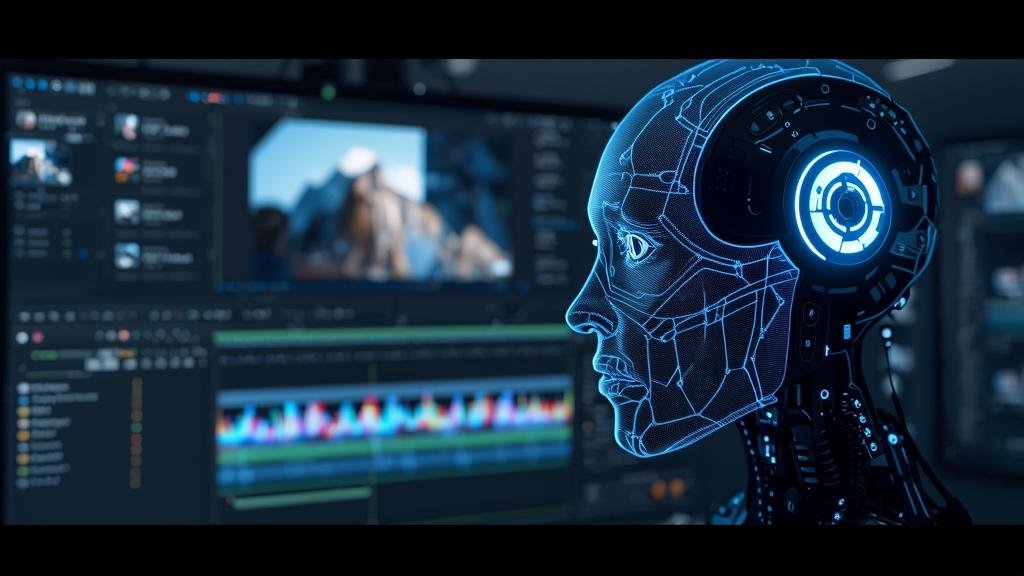
Step 1: Update and activate. Ensure you’re running the latest Final Cut Pro and install the Apple Creator Studio add-on. Open Final Cut Pro, go to the Effects panel, and enable Pro Video AI. If you’re on an M2/M3 Mac, the system will auto-select on-device inference. Intel Macs will prompt for GPU fallback compatibility; accept if you’re okay with limited features.
Step 2: Build a Smart Timeline. Import your footage and click “Create Smart Timeline” in the Apple Creator Studio panel. The engine scans for scenes, dialogue, and motion. You’ll get a rough cut arranged by scene changes and speaker detection. Review the markers and adjust if needed—Smart Timeline is a starting point, not a final edit. This step alone can cut hours off assembly edits.
Step 3: Apply Object Removal. Select a clip, open the Object Removal effect, and paint over the object you want gone. Pro Video AI analyzes surrounding frames and fills the area. Use “Fast” mode for quick social cuts; switch to “High Quality” for broadcast. If the result looks soft, increase the “Temporal Blend” slider to pull more data from adjacent frames. For complex backgrounds, consider tracking the object first to give the AI better context.
Step 4: Match scenes with Scene Match. Drop a reference clip on the timeline and apply Scene Match to target clips. Pro Video AI balances exposure and color between shots. For multi-cam interviews, set the primary speaker as the reference. If the match feels too aggressive, dial back the intensity and use secondary color grading for nuanced skin tones. This replaces most manual secondary corrections.
Step 5: Clean audio with Dialogue Enhance. Select the audio lane, apply Dialogue Enhance, and choose “Voice Clarity” or “Noise Reduction.” Pro Video AI isolates speech and suppresses background noise without destroying transients. For windy field recordings, enable “Wind Filter” and increase “De-ess” slightly to tame sibilance. Always monitor on headphones to catch artifacts.
Step 6: Motion track overlays. Add titles or graphics, then apply Motion Tracking. Pro Video AI anchors the layer to a selected point in the frame. For shaky footage, enable “Stabilize Track” to smooth the motion path. If tracking drifts, adjust the track region to focus on high-contrast features. This is ideal for product callouts, lower-thirds, and animated logos.
Step 7: Export and review. Use the new “AI Preview Render” to check complex sections before final export. This pre-renders heavy effects without committing to the final file. When satisfied, export using your preset—Apple Creator Studio preserves effect metadata, so future edits stay non-destructive. For team review, generate a proxy share with timecode notes.
Real-world example: For a 5-minute event recap, Smart Timeline assembles 40 clips in under 2 minutes. Scene Match balances stage lighting with handheld B-roll. Object Removal cleans up a distracting sign in the background. Dialogue Enhance removes crowd noise from the keynote. Total edit time drops from 6 hours to 2.5 hours, with a cleaner final cut.
Pro tips: Use “Fast” mode for social cuts and “High Quality” for broadcast. Create shared effect presets for your team to maintain consistency. Always review AI-heavy sections frame-by-frame—automation is powerful but not infallible.
Compatibility, Availability, and Pricing (If Known)
Apple Creator Studio 2026 is available now as an add-on for Final Cut Pro on macOS. It requires an M-series Mac (M2 or M3 recommended) with at least 16GB of unified memory. M3 Ultra configurations deliver the best performance for 4K AI tasks. Intel Macs are supported via GPU fallback, but some features—like advanced object removal—may be disabled or run significantly slower.
Operating system requirements: macOS 14.5 or later. Final Cut Pro must be updated to the 2026 release. Storage-wise, plan for at least 500MB for models and cache. For large projects, keep 10–20% of your drive free to avoid cache thrashing during AI renders.
Pricing: Apple Creator Studio is offered as a standalone add-on for existing Final Cut Pro users and as part of a new subscription bundle. Exact pricing varies by region. If you already own Final Cut Pro, the add-on is a lower-cost upgrade. New users can opt for the bundle, which includes Final Cut Pro plus Apple Creator Studio. Enterprise licensing is available via Apple Business Manager for team deployments.
Availability: The add-on is distributed through the Mac App Store. It’s available in most regions where Final Cut Pro is sold. Some Pro Video AI features may roll out in stages due to regional compliance or language support. If a feature isn’t showing up, check for updates in the Mac App Store and verify your hardware meets the requirements.
Cloud assist: Optional background indexing can use iCloud for metadata sync, but all creative processing (AI rendering) remains on-device. This is important for teams with strict data policies—your raw footage never leaves the Mac during editing.
Common Problems and Fixes
Symptom: Object Removal produces blurry patches or ghosting.
Cause: The AI is relying on insufficient temporal data or low-contrast backgrounds.
Fix: Switch to “High Quality” mode and increase the Temporal Blend slider. If the background is uniform, manually track the object before applying removal. For stubborn cases, split the clip and apply the effect in shorter segments to improve frame analysis.
Symptom: Motion Tracking drifts or loses the target.
Cause: Low contrast, fast motion, or occlusion confuse the tracker.
Fix: Redefine the track region around a high-contrast feature (edges, logos, distinct textures). Enable “Stabilize Track” for shaky footage. If occlusion is frequent, break the track into multiple segments and re-anchor after each occlusion.
Symptom: Dialogue Enhance introduces artifacts or “underwater” sound.
Cause: Aggressive noise reduction settings or inconsistent audio levels.
Fix: Lower the Noise Reduction intensity and enable “Voice Clarity” instead. Use a gentle De-ess setting. For field recordings, apply Wind Filter first, then Dialogue Enhance. Always A/B test on headphones to catch artifacts early.
Symptom: Scene Match oversaturates skin tones or mismatches daylight/LED lighting.
Cause: The reference clip has different color temperature or mixed lighting.
Fix: Reduce the Scene Match intensity and use a reference clip with neutral lighting. For mixed lighting, apply Scene Match per scene, not globally. Follow up with secondary color grading for skin tones. Consider using a color chart in future shoots for more accurate matching.
Symptom: AI Preview Render is slow or stalls on M2 Macs.
Cause: Complex timelines with multiple heavy effects exceed real-time capacity.
Fix: Lower preview resolution to 1080p and disable background rendering during AI Preview. Close other apps to free unified memory. If stalling persists, render in sections and reassemble. For long-term improvement, consider upgrading to an M3 Pro/Max or M3 Ultra.
Symptom: Intel Macs show missing features or errors.
Cause: GPU fallback is limited and some models don’t support required Metal features.
Fix: Update macOS and Final Cut Pro to the latest versions. If features remain missing, switch to “Compatibility Mode” in settings—this uses lighter models that run on older GPUs. For consistent performance, consider migrating to Apple silicon.
Security, Privacy, and Performance Notes
Apple Creator Studio’s biggest privacy advantage is on-device processing via Pro Video AI. Your raw footage and project files stay local; no creative rendering is sent to the cloud. Optional cloud assist is limited to metadata indexing and sync, which you can disable if your workflow demands strict isolation. For enterprise teams, this aligns with common compliance requirements around media handling.
Security best practices: Keep macOS and Final Cut Pro updated to patch any vulnerabilities. Use standard user accounts for editors and admin accounts only for installs. If you use shared libraries, enable permissions and audit logs via Apple Business Manager. Avoid installing third-party plugins from unverified sources, as they can access timeline data and media files.
Performance considerations: Apple Creator Studio is optimized for Apple silicon. M3 Ultra handles 4K AI tasks in real-time; M2 Pro/Max are strong for 1080p and light 4K. Intel Macs are functional but inconsistent. To maximize performance, allocate dedicated SSDs for media and cache. Keep at least 10–20% of your drive free. Disable unnecessary background apps during heavy AI renders.
Tradeoffs: “High Quality” mode produces better results but increases render time and memory usage. For fast-turnaround social content, “Fast” mode is usually sufficient. Always review AI-heavy sections—automation can introduce subtle artifacts, especially in complex scenes with motion blur or low light.
Backup and versioning: Apple Creator Studio preserves non-destructive effect metadata, but it’s not a substitute for backups. Use Time Machine or a robust NAS solution. For team projects, keep versioned libraries to roll back if an AI effect produces unexpected results.
Final Take
Apple Creator Studio 2026 is a meaningful leap for pro video workflows. By integrating Pro Video AI directly into Final Cut Pro, it removes the friction of external tools and speeds up common tasks like object removal, motion tracking, and audio cleanup. The on-device approach keeps data private and renders fast, especially on M3 Ultra hardware. For editors facing daily deadlines, this is a practical productivity boost, not just a tech demo.
If you’re already using Final Cut Pro, the add-on is worth testing on real projects—start with Smart Timeline and Scene Match to see immediate time savings. For teams, the standardized AI models help maintain consistency across seats. Just remember: automation is a helper, not a replacement for craft. Review critical sections frame-by-frame, fine-tune settings, and keep backups. Ready to try it? Install the add-on and run a pilot project with Apple Creator Studio and Pro Video AI to quantify the gains for your workflow.
FAQs
Do I need an M-series Mac to use Apple Creator Studio?
M2 or M3 Macs are recommended for full feature support and real-time performance. Intel Macs are supported via GPU fallback, but some features are limited or slower.
Is Pro Video AI cloud-based?
No. Pro Video AI runs on-device using Apple’s neural engine. Optional cloud assist handles metadata indexing only; creative processing stays local for privacy and speed.
Can I use Apple Creator Studio without Final Cut Pro?
No. Apple Creator Studio is an add-on that integrates into Final Cut Pro. You need the latest Final Cut Pro release to access the features.
Does it work with 8K footage?
Yes, but performance depends on hardware. M3 Ultra can handle 8K AI tasks with some limitations; M2 Pro/Max are best suited for 4K. For complex effects, consider proxy workflows.
Is there a free trial?
Availability of trials varies by region and time. Check the Mac App Store listing for Apple Creator Studio to see current options. If a trial is offered, it typically includes full features for a limited period.